Below are some every day, useful commands to use when troubleshooting your own device and network issues
ipconfig /all
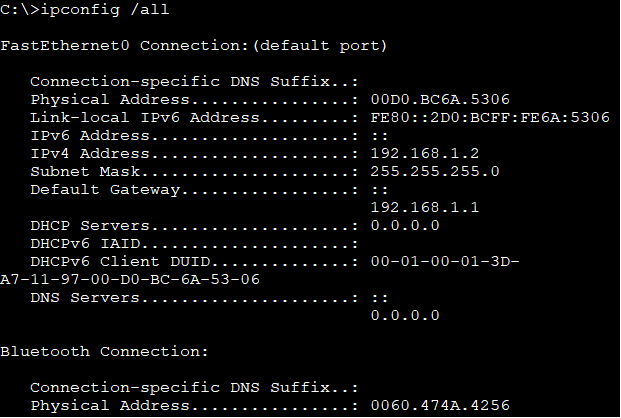
This command shows the current TCP/IP configurations for all adapters. This can be both logical and physical addresses. Below is a simple screenshot with the results. Notice the default gateway is shown, this is the router address on the same network as the device. Without the default gateway being configured we will not be able to communicate remotely or with other networks.
show ip interface brief
This is a router command it shows all IPv4 interface configurations and their current status

ping
Ping verifies IP connectivity to another networked device by sending Internet Control Message Protocol (ICMP) echo Request messages. When a successful ping happens you get the below pieces of information. In the example 127.0.0.1 is a loopback address to check if the local PC's TCP/IP address is configured correctly. If an IP address is not available you will get a timed out message.

tracert
Trace route will diagnose the path taken to a destination. Again ICMP is used, and echo requests are feedback when a different network is identified. This is used to pinpoint where network failures occur

These are just some small examples of commands that can be used at a fundamental level. Microsoft have published a detailed list of commands here