Showing posts with label information security. Show all posts

Thursday, 16 February 2023

Using Group Policy to deploy wallpaper to domain machines

On the server open up internet explorer, go to the website bing.com ( google may run slow ) . Search for an image of your choice
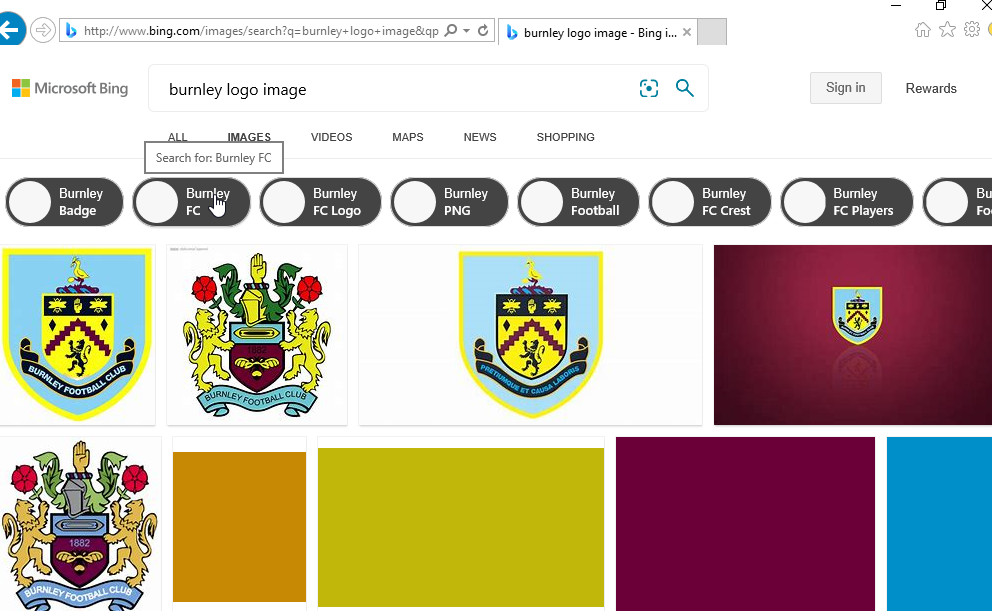


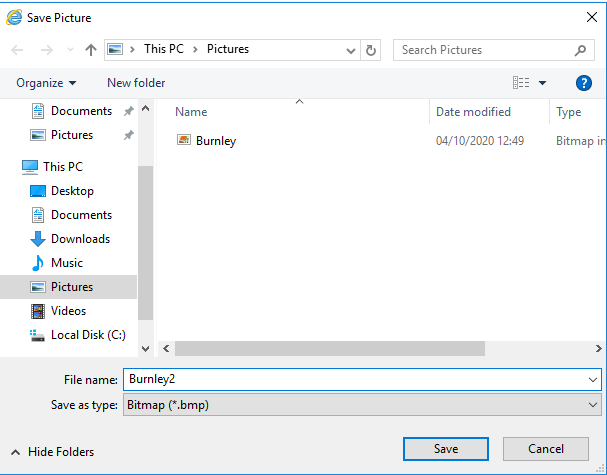
Right click on the image - and save it to the Pictures folder on the server as a bmp file 


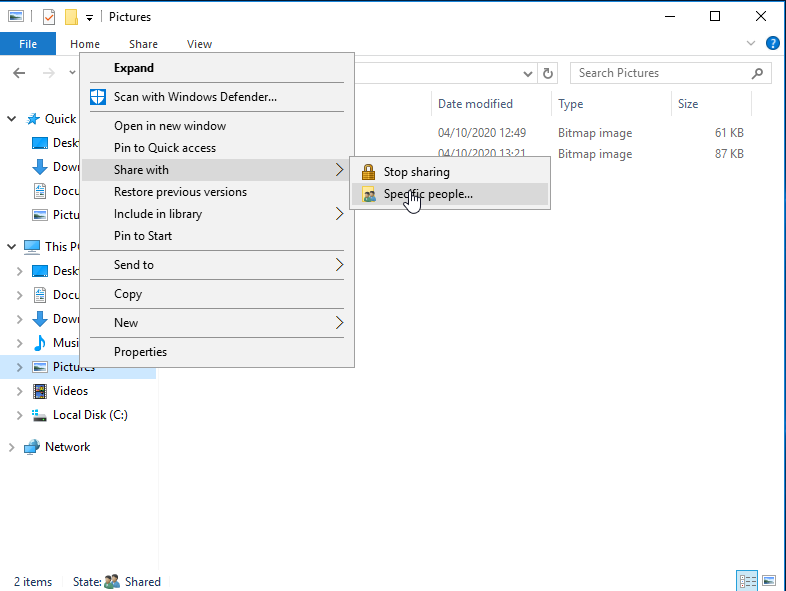
Right click on the pictures folder and click share with specific people


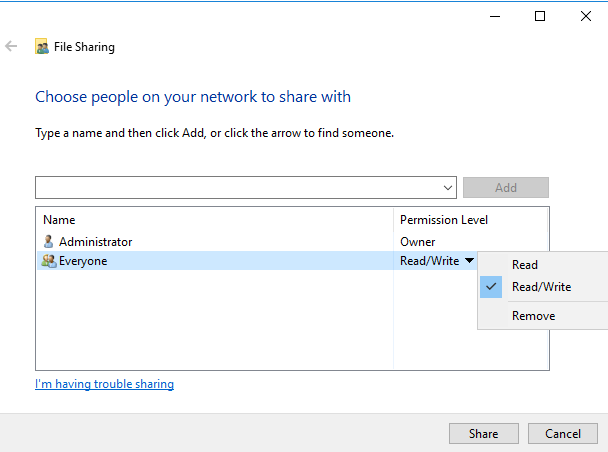
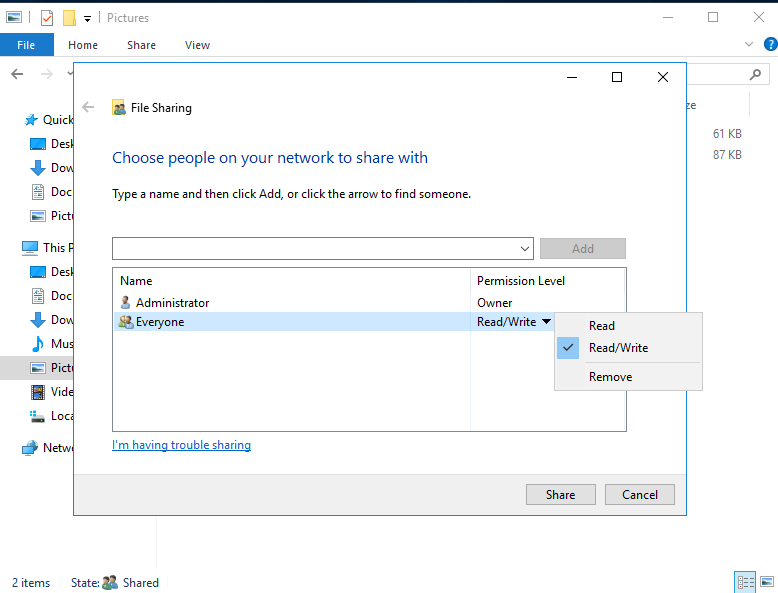
Ensure everyone is added if not click the drop down box and add tick read/write and click share


Do the same for the file you want to use for example here I have right clicked on burnley2 and clicked share with specific people
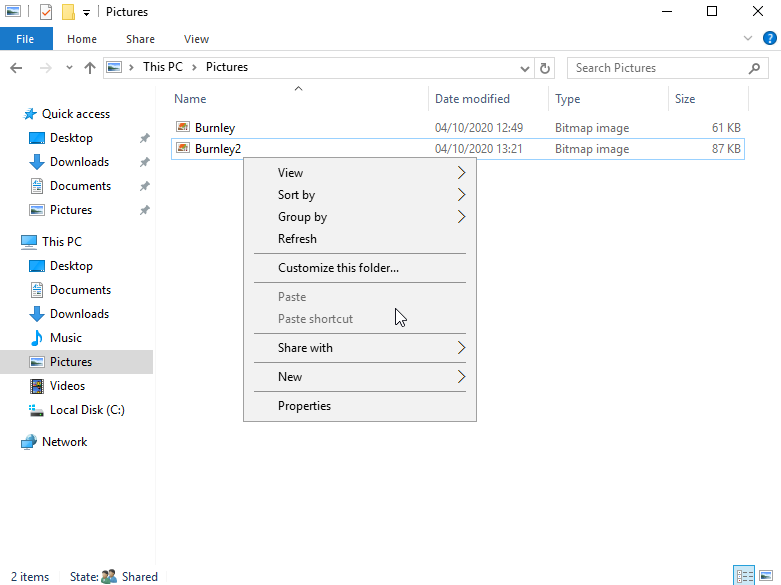


Ensure Everyone + Read/write is selected and click share


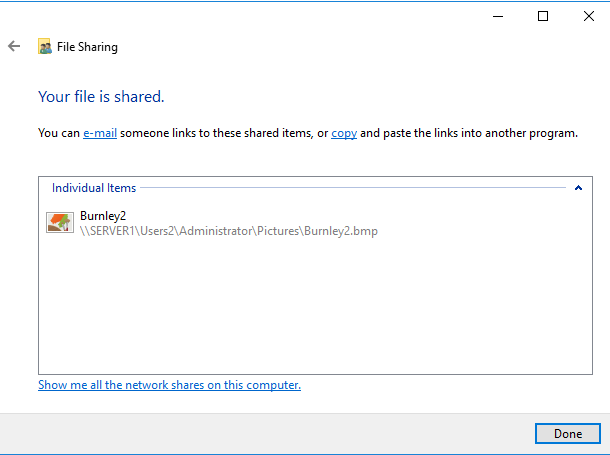
You should see the below screen with the file name location listed. Mine is 


\\SERVER1\Users2\Administrator\Pictures\Burnley2.bmp


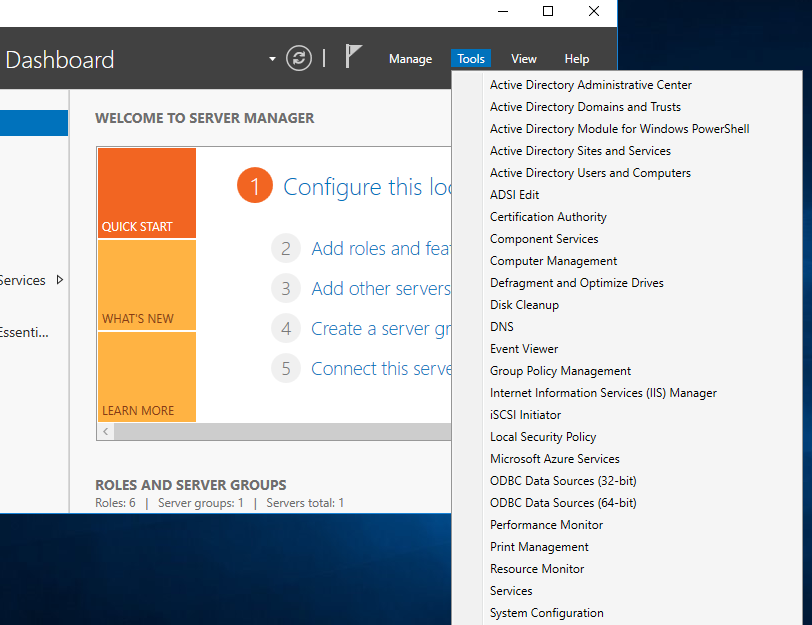
On server manager, click tools then Group policy management 


Right click Group Policy Objects - Click New 
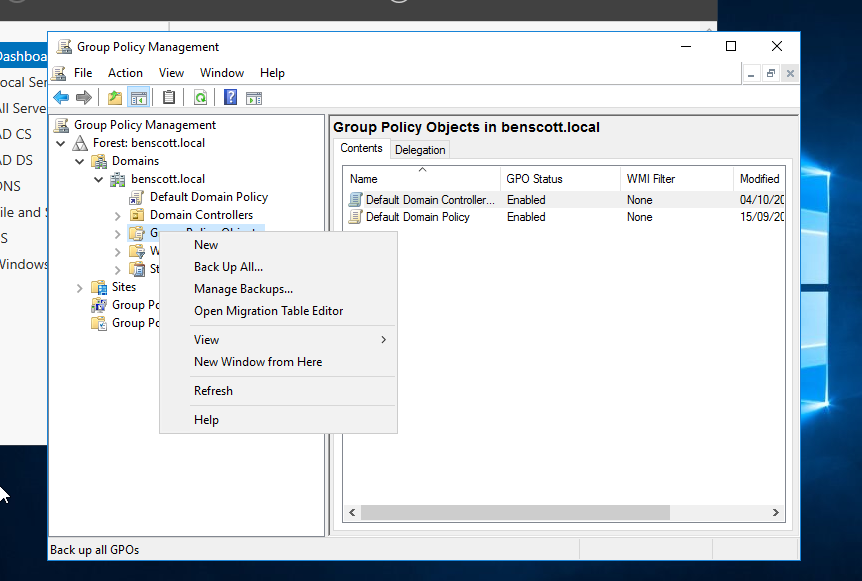


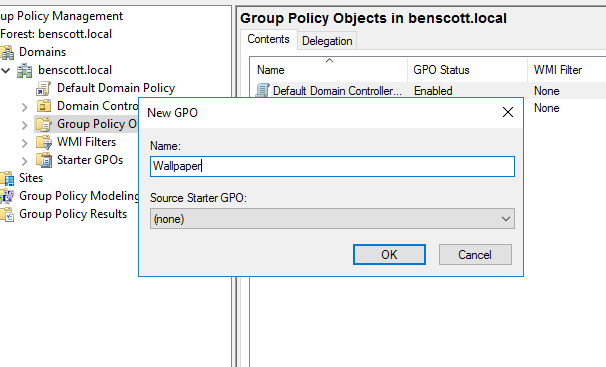
Type Wallpaper then click ok


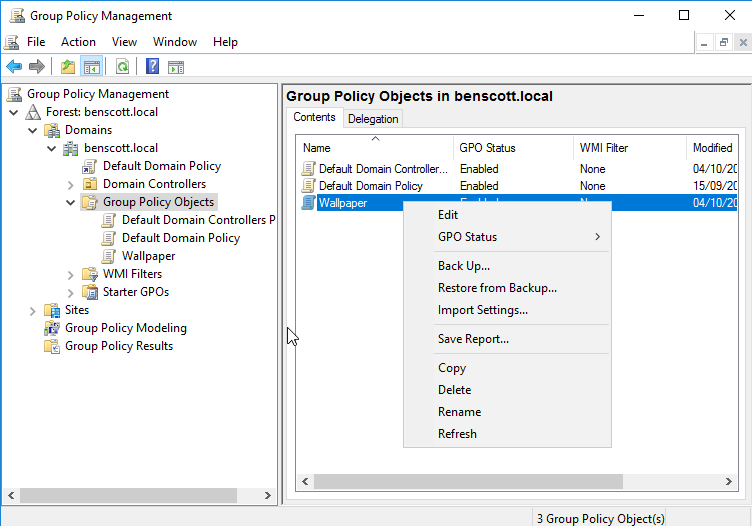
Now right click Wallpaper in the Group Policy Objects folder and click edit


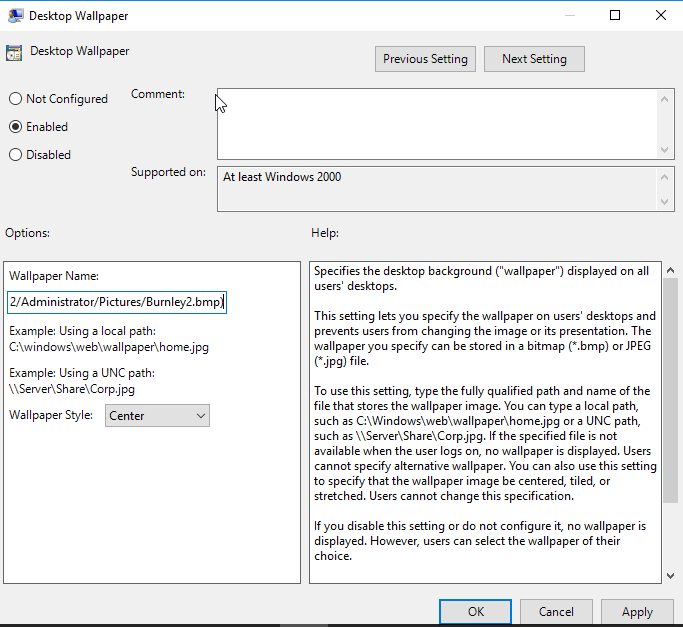
Expand user configuration -> policies -> administrative templates then click desktop and on the right hand side click desktop wallpaper


Click enabled - type the full file path into the Wallpaper name , and select style as center or fill ( however you want the logo to appear. Click apply 


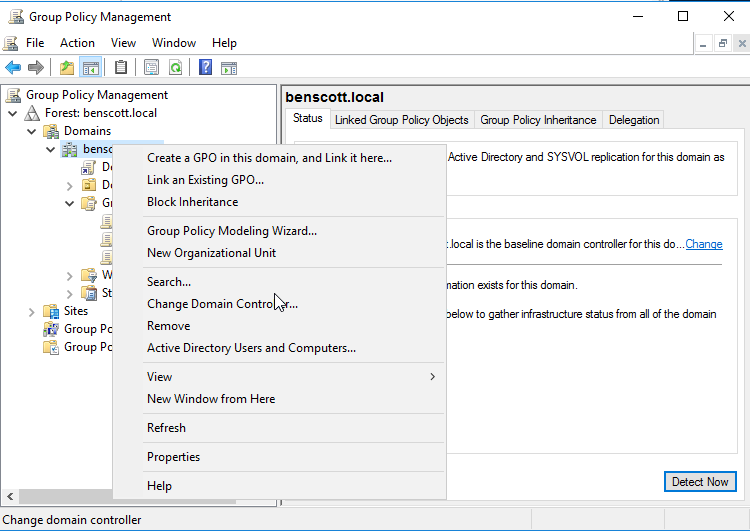
Go back to the group policy management console and right click your domain name - click Link an existing GPO


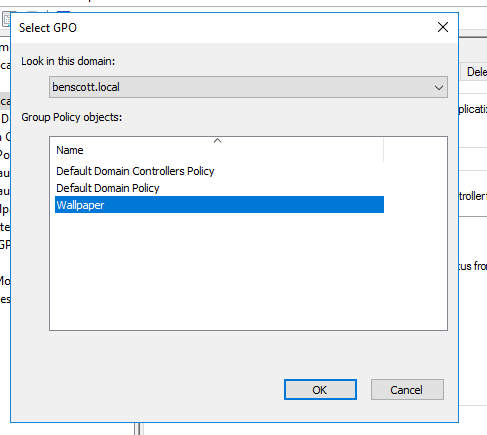
Select wallpaper


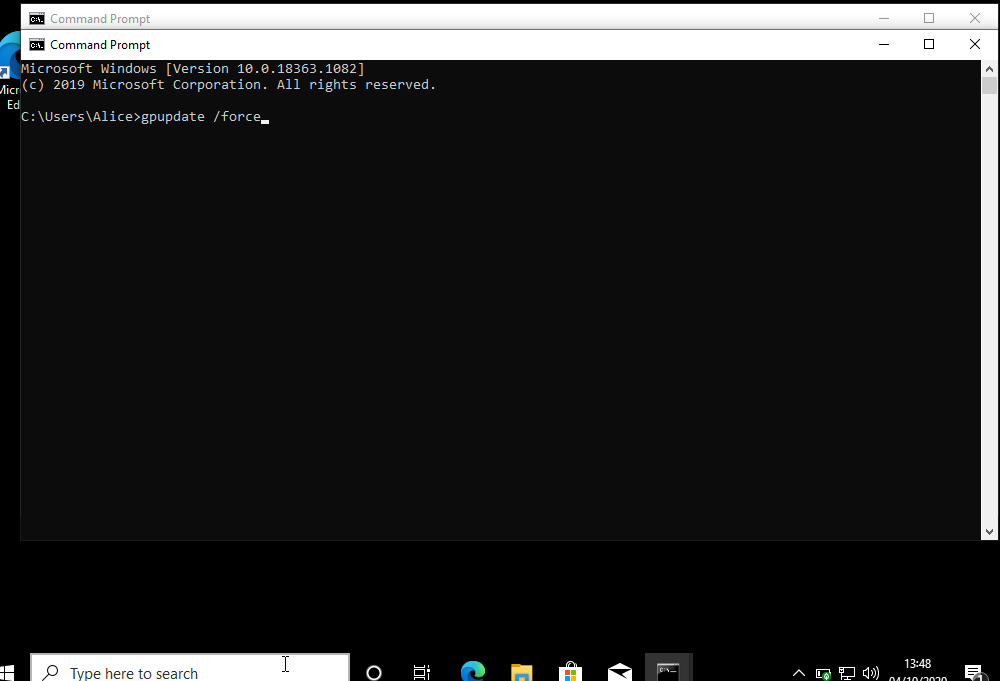
On the Windows 10 machine open cmd prompt 


Type gpupdate /force 


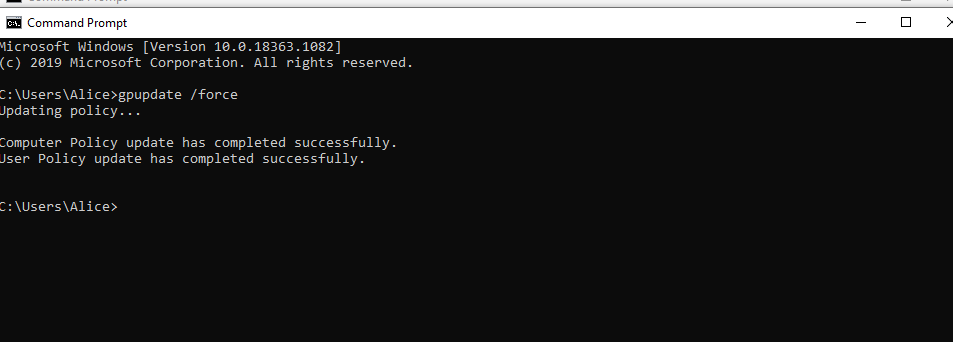
You should see the below message that is has been successfully update. Close the command prompt window and restart the windows 10 machine


Login with a user and you should see your logo if you have been successful :) 


Connect a Windows 10 machine to a domain


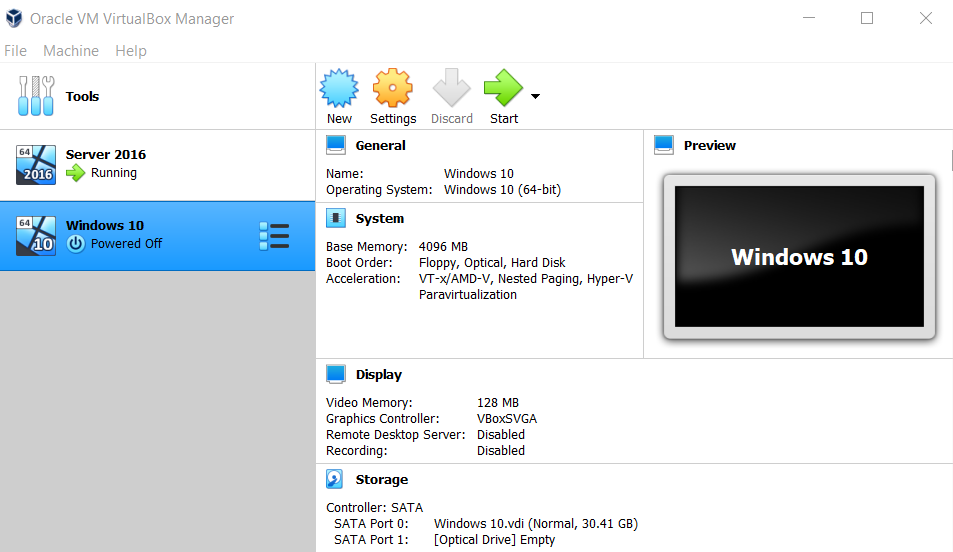
Select the Windows 10 machine and click start


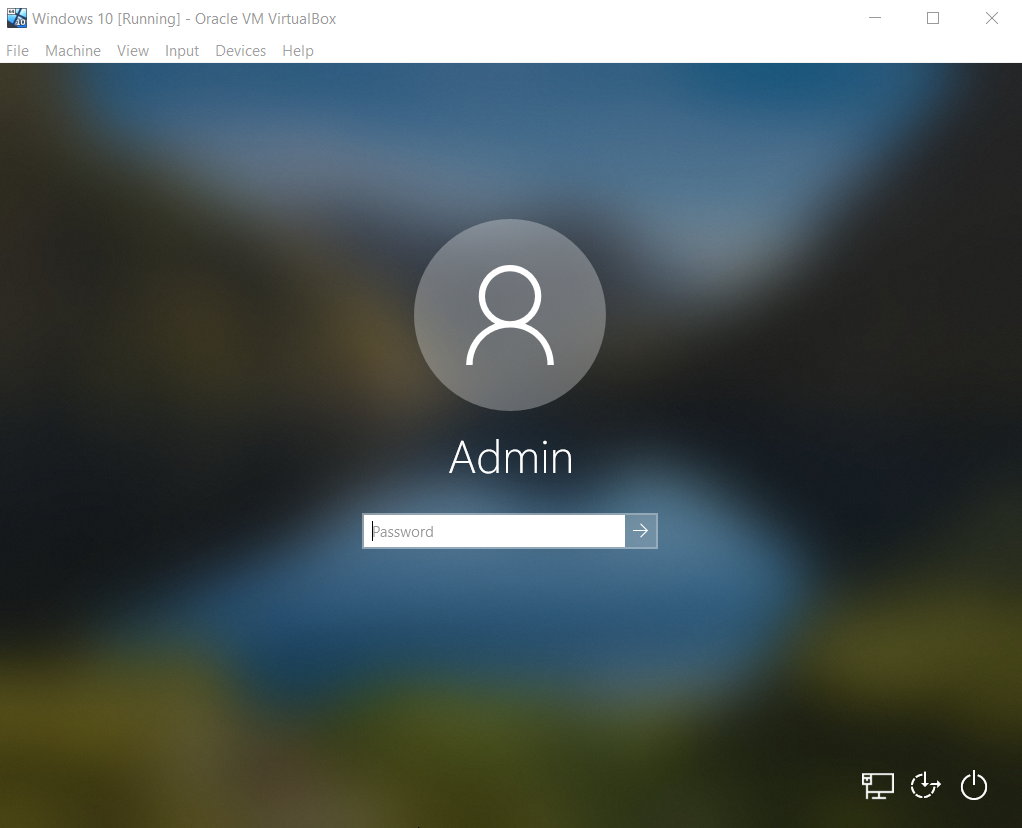
Enter your password at the login screen


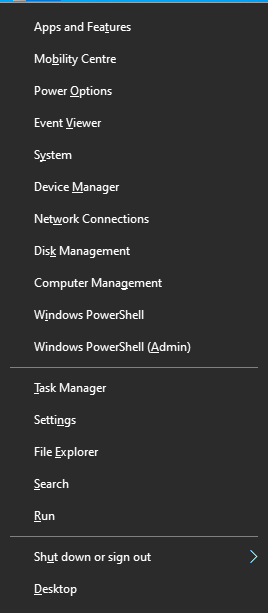
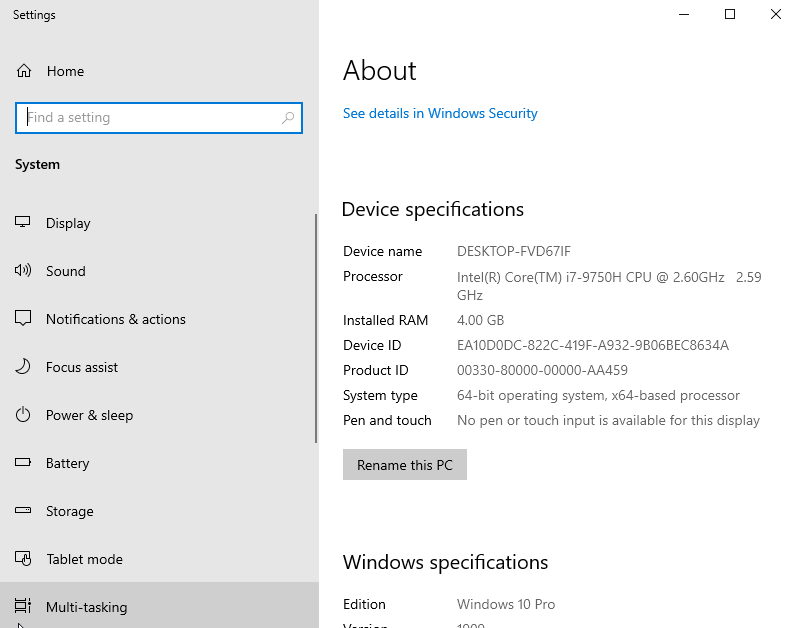
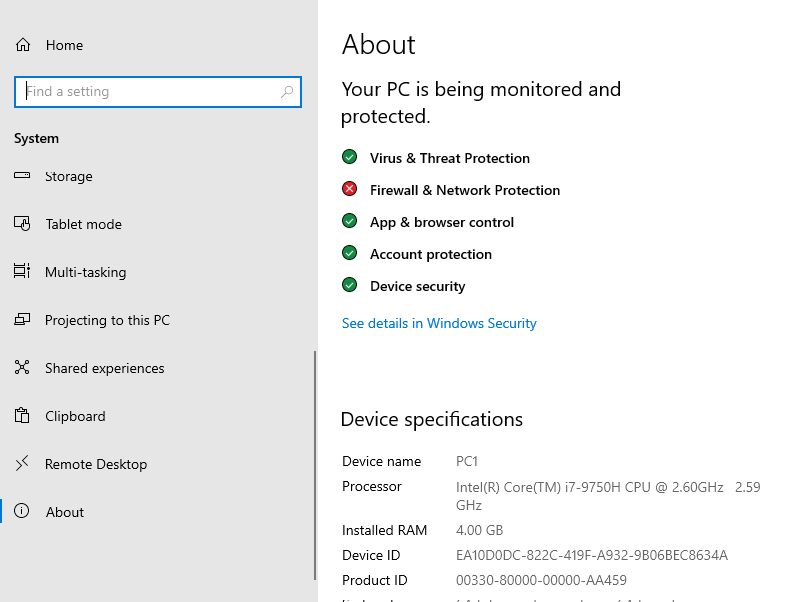
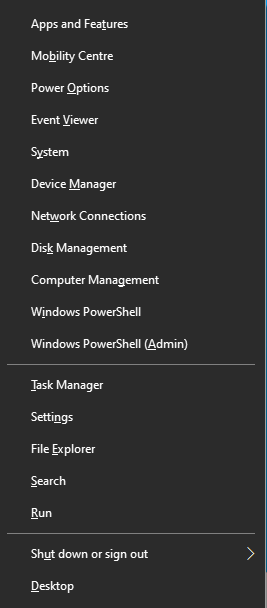
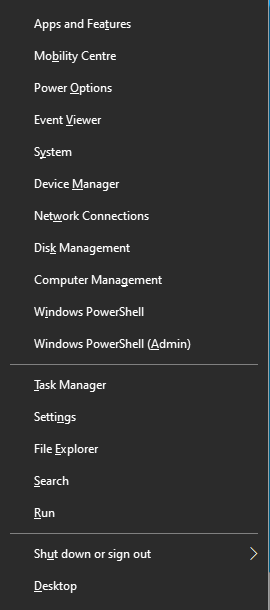
Press the Windows + X key and select system


Select rename this PC


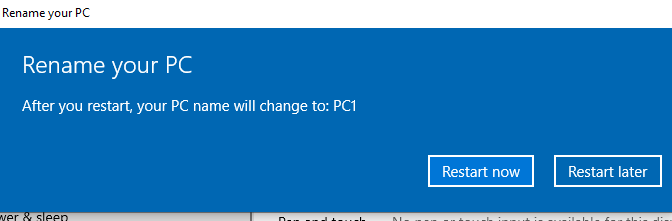
Change the name to PC1


Click restart now


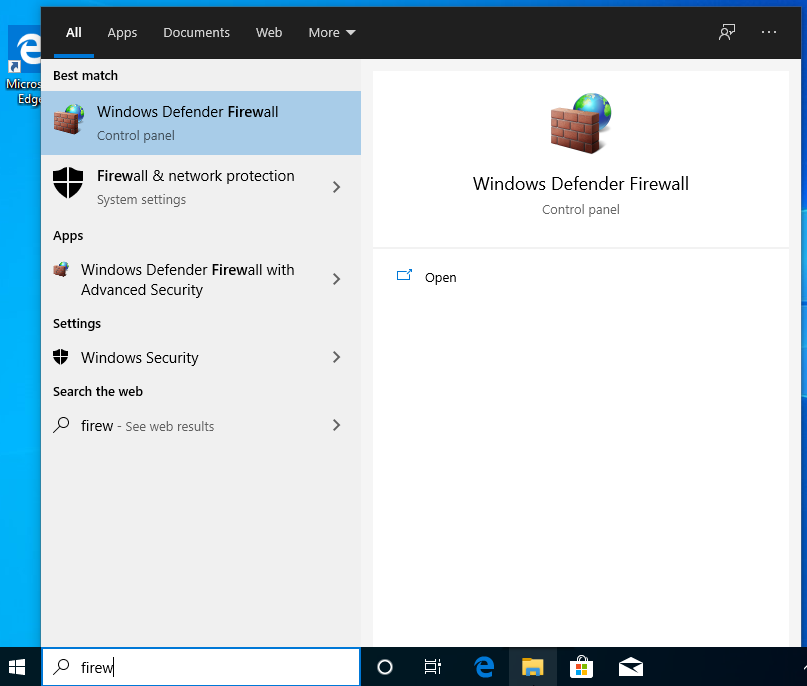
Press the windows + s key and type firewall and select the Windows defender firewall


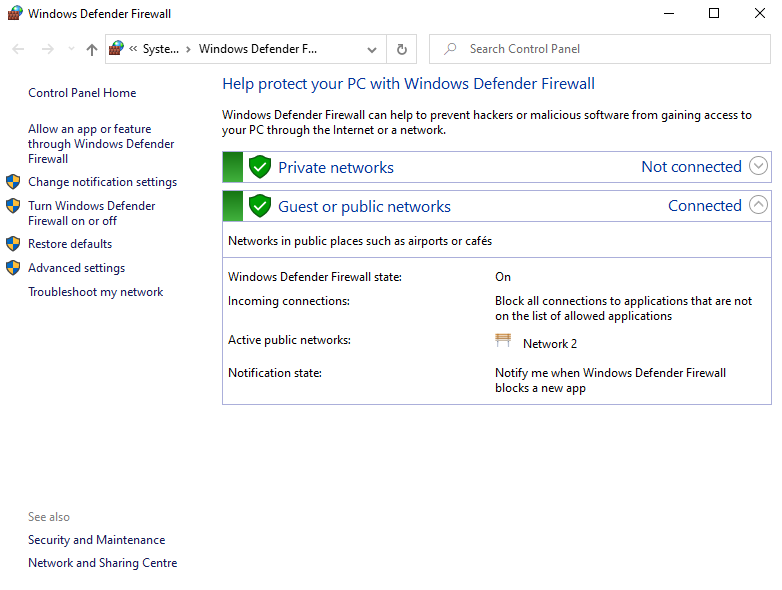
Select turn windows defender on or off


Turn off both private and public settings


Press the Windows + X key and select system


Select Remote Desktop


Turn Remote Desktop On 


Click confirm


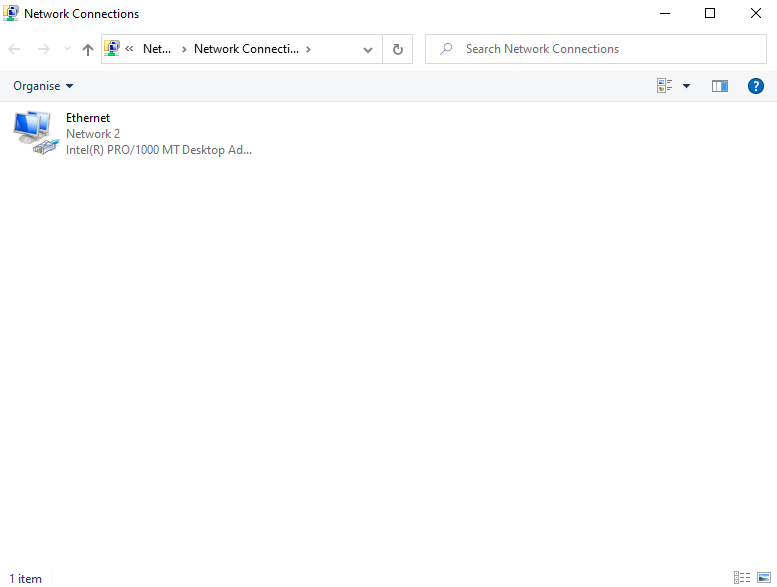
Press the Windows + X key and select network connections 


Click Change adapter options


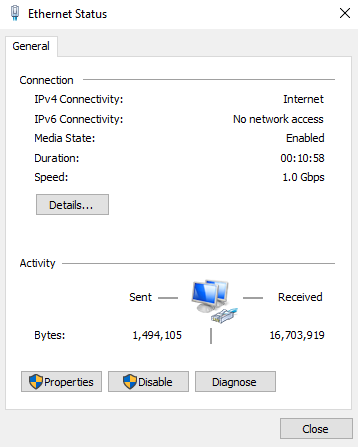
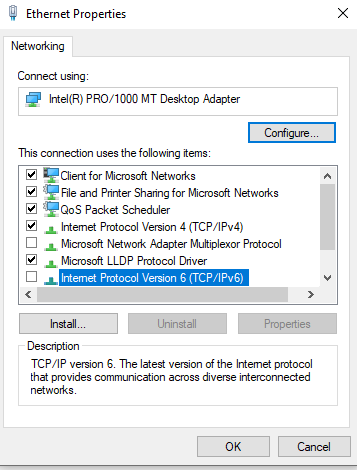
Double click on the ethernet icon


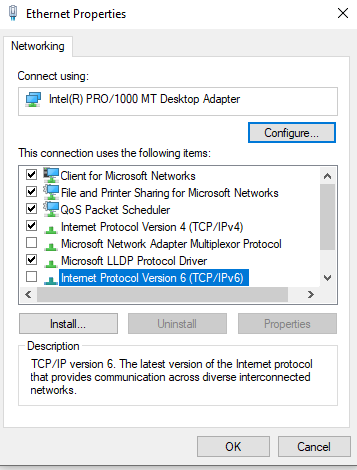
Click properties


Uncheck IPv6 


Double click on Ipv4


Enter the IP address of your server from previous instructions below is my server's address . click ok 


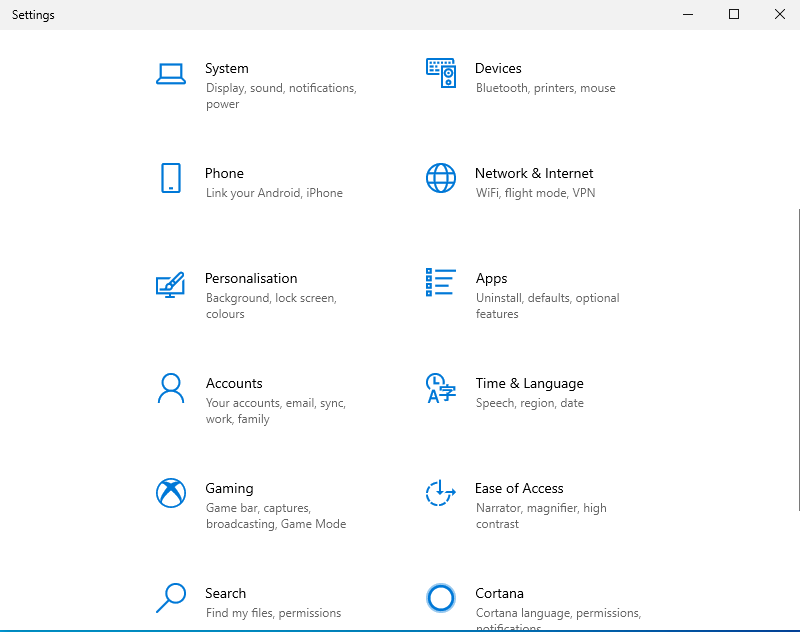
Press the Windows + X key and select settings 


Select accounts


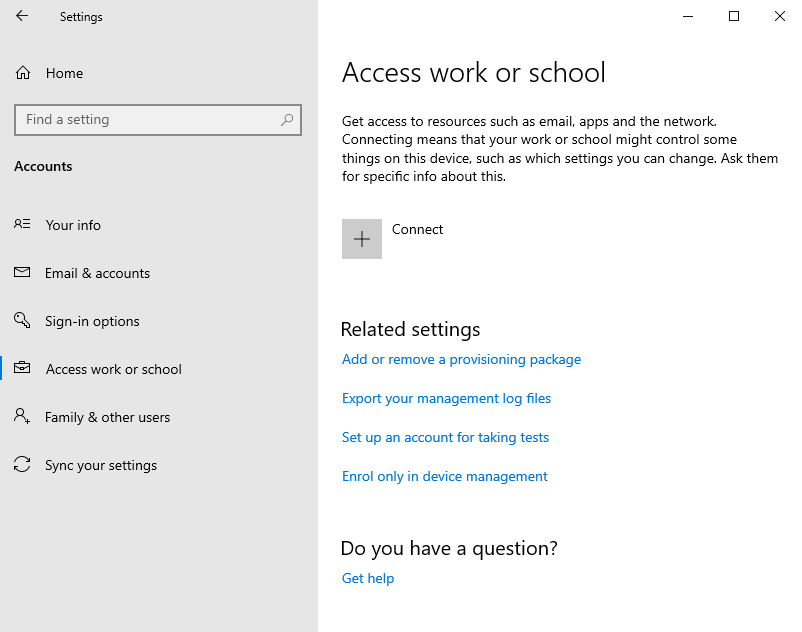
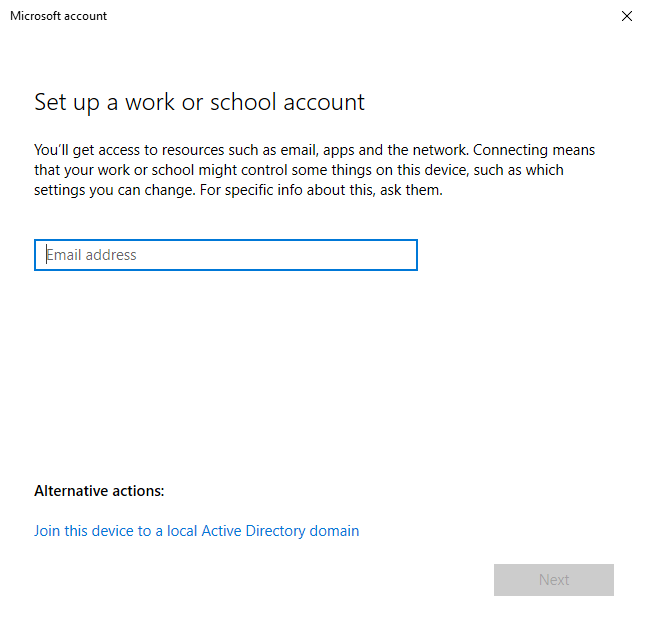
Select access work or school 


Select connect 


Select join this device to a local Active Directory domain 


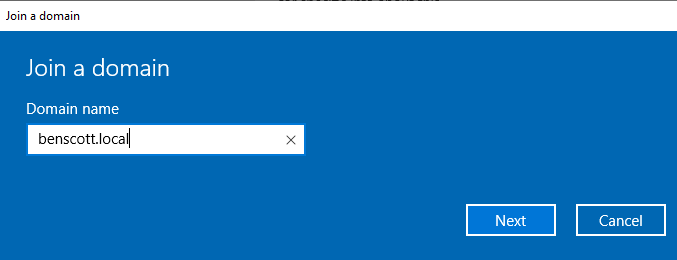
Type your domain name


Type .\ ( then the username for which you made an administrator and the password )


Skip the below step and restart the PC


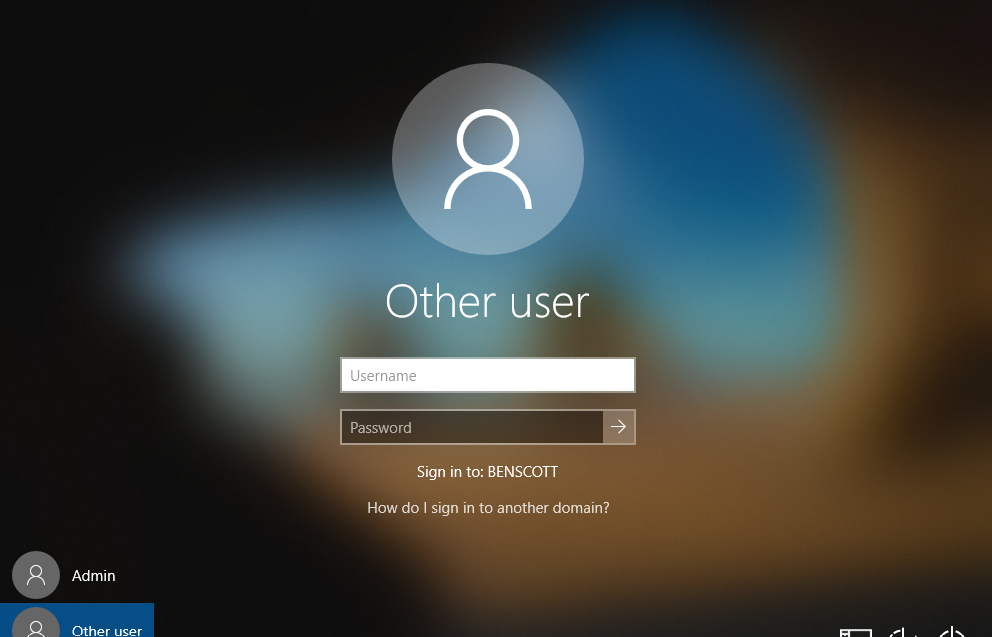
When the computer restarts you should see your domain name at the Sign in 


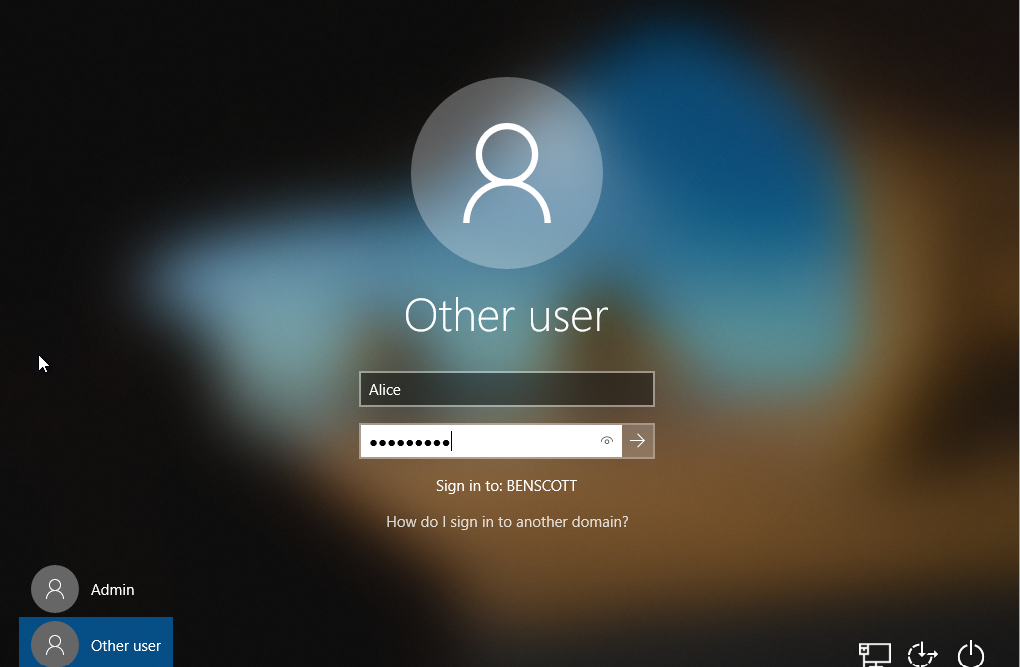
Type the user logins and press enter


New user has joined 👏


Close tabs down and shutdown the Windows 10 machine.

Fast switching vs Process switching

Process Switching: Process switching is the traditional method of packet forwarding used in early routers. When a packet arrives at a router...