Showing posts with label wireless. Show all posts

Thursday, 20 April 2023

Active and Passive Scanning on Access Points

When a wireless device wants to connect to an access point (AP), it must first scan for available APs. There are two types of scanning that a wireless device can use: active scanning and passive scanning.

Active Scanning

In active scanning, the wireless device sends out a probe request frame. This frame contains the wireless device's SSID and other information. If an AP receives the probe request frame, it will respond with a probe response frame. The probe response frame will contain the AP's SSID, BSSID, security settings, and other information.
Active scanning is more efficient than passive scanning because it allows the wireless device to quickly find APs that are broadcasting their SSID. However, active scanning can also be more disruptive to other wireless devices on the same channel.

Passive Scanning

In passive scanning, the wireless device does not send out any frames. Instead, it listens for beacon frames that are broadcast by APs. Beacon frames are periodically sent by APs to announce their presence and to provide information about their SSID, BSSID, security settings, and other information.
Passive scanning is less disruptive than active scanning because it does not require the wireless device to send out any frames. However, passive scanning can be slower than active scanning because the wireless device must wait for APs to broadcast beacon frames.

Which Type of Scanning Should You Use?

The type of scanning that you should use depends on your needs. If you need to quickly find APs, then active scanning is the best option. However, if you are concerned about disrupting other wireless devices, then passive scanning is the better option.
Here are some additional things to consider when choosing between active and passive scanning:
  • Battery life: Active scanning uses more battery power than passive scanning.
  • Security: Active scanning can be more disruptive to other wireless devices on the same channel.
  • Speed: Passive scanning is slower than active scanning.

CAPWAP - Activity

Control and Provisioning of Wireless Access Points (CAPWAP) - is a protocol that enables a wireless access controller to manage a collection of termination points. Lets run through this in Cisco's packet tracer:

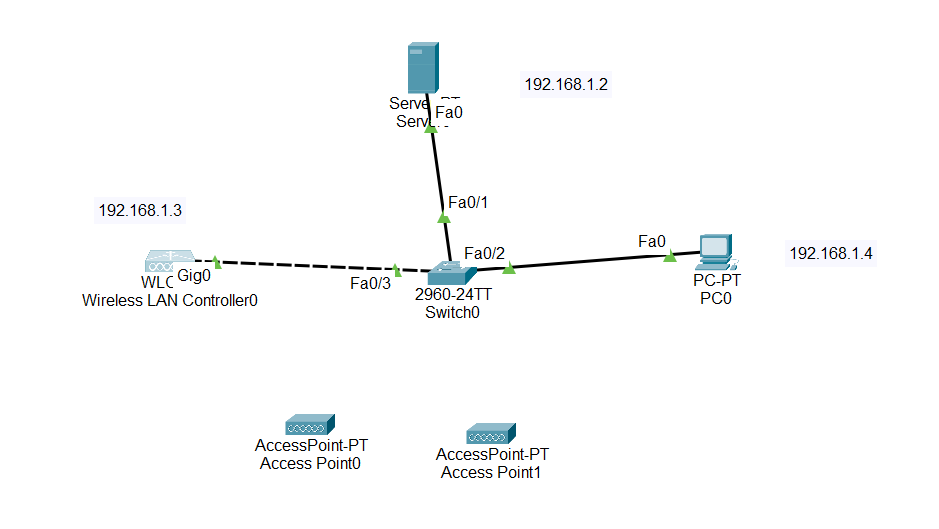
Build a topology

Build a topology like the below, lets refrain from wiring up the access points now. Imagine this is a company office and the wireless access points are on corridors to provide better wireless services to devices across the company. 


Server config


Assign an IP address to your server:


Under services, check DHCP, turn it on and configure IP addresses like the below making sure they match your topology outline.


DNS: create a DNS entry of your choice and again make sure the IP address matches your topology. 


Configure the wireless lan controller (WLC)

Again make sure your IP addresses match your topology.


Enable DHCP on your PC


Check you can communicate with the WLC


ON the PC enter the IP address in the web browser of your WLC (once you press go it make take a few minutes to connect)


Create a user name and password. (your password will need to have requirements ie capitals and numbers)


Name your WLC and assign the IP addresses from your topology. I have left the management VLAN for now as this would form part of a wider activity.


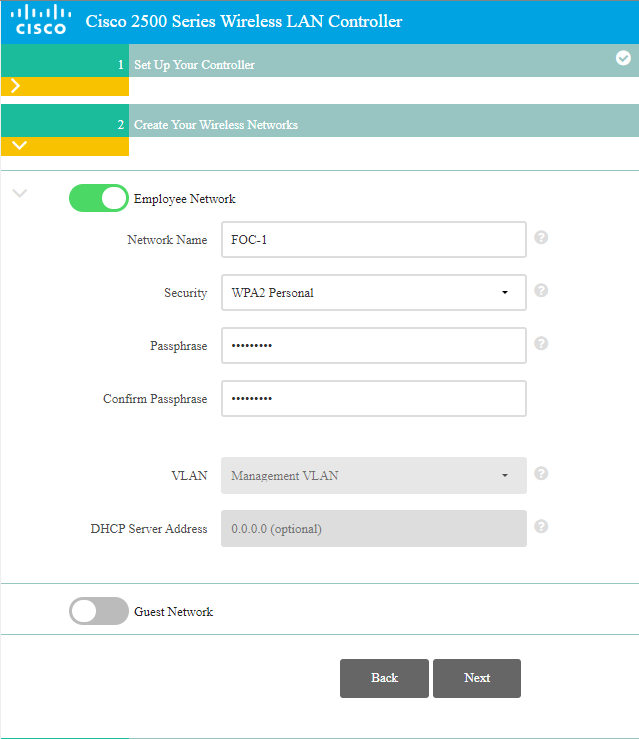
Give your Wireless network an SSID and set the encryption method and passphrase.


The virtual IP address can remain the same.


Check and confirm your settings: 


You can now connect your access points wait until they have all turned green. Make sure you have used the Lightweight access points


You will need to drag the power supply into the power socket from the bottom this LAP does not support POE


Now when you go back into the browser on the PC you will need to use https before your IP address


Once logged in you should be presented with the status of your access points and lots more information such as system time, uptime access. There is a lot that can be done here such as added guest networks or different forms or authenticated networks but that's for another day :) 


Tuesday, 18 April 2023

Basic Wireless Home Security

Wireless security is generally controlled through a nice GUI these days. It is relatively straight forward to administer as most users are home users. Home networks are configured for the masses and are not necessarily secure especially if used in business. Below are some key features exampled using Cisco Packet Tracer's WRT300N Router

SSID Cloaking

By default home routers display their SSID (ie BT7891XN). The SSID is the name of the network. This is a security risk and should be hidden to avoid an open door. In the below image the SSID broadcast is set to disabled which prevents the SSID being displayed to available devices and it will need to be entered manually in order to connect.


Access Restrictions

To edit access restrictions and only allow certain IP addresses and MAC addresses to connect, under access restrictions click edit list.


This will allow you to enter the IP ranges or specific IP addresses allowed to connect to your wireless networks


Further down on the access restriction tab you can block websites, applications or keywords (packet tracer is a bit restrictive in this department


Configuring keyword blocking is important these days if you have young children, but also certain websites that you may not want to see your colleagues or family members access are also very important measures.

Wireless Standards

Wireless standards are a set of specifications that define how wireless devices communicate with each other. There are many different wireless standards in use today, each with its own strengths and weaknesses.

The most common wireless standard is IEEE 802.11, which is also known as Wi-Fi.. Wi-Fi is available in many different speeds, including 802.11b (11 Mbps), 802.11g (54 Mbps), 802.11n (300 Mbps), 802.11ac (1.3 Gbps), and 802.11ax (up to 10 Gbps). (See table) You will also notice the frequencies in the table. Wireless standards are either dual or single band. Single band on 2.4Ghz will be able to travel further and are less prone to wireless interference than 5Ghz but 5Ghz has can deal with higher data rates. Dual band can switch between the two.


Backward compatibility list


Wireless bands also operate on different channels;

BandChannels
2.4 GHz1, 2, 3, 4, 5, 6, 7, 8, 9, 10, 11
5 GHz36, 40, 44, 48, 149, 153, 157, 161, 165


Another common wireless standard is Bluetooth. Bluetooth is a short-range wireless technology that is used for connecting devices that are close together, such as smartphones, headphones, and speakers. Bluetooth is available in different speeds, including Bluetooth 1.0 (723 kbps), Bluetooth 2.0 (3 Mbps), Bluetooth 3.0 (24 Mbps), Bluetooth 4.0 (2 Mbps), Bluetooth 4.1 (1 Mbps), Bluetooth 4.2 (1 Mbps), Bluetooth 5.0 (5 Mbps), and Bluetooth 5.1 (2 Mbps).

There are also many other wireless standards in use today, such as Zigbee, Z-Wave, and WiMAX. Each of these standards has its own strengths and weaknesses, so it is important to choose the right standard for your needs.

When to Choose Other Wireless Standards

Other wireless standards, such as Zigbee, Z-Wave, and WiMAX, are good choices for specific applications. For example, Zigbee is a good choice for connecting low-power devices in home automation networks. Z-Wave is a good choice for connecting security devices, such as door locks and motion sensors. WiMAX is a good choice for providing broadband internet access in rural areas.

Choosing the Right Wireless Standard

The best way to choose the right wireless standard is to consider your needs. If you need to connect devices to the internet, Wi-Fi is a good choice. If you need to connect devices that are close together, Bluetooth is a good choice. If you need to connect devices for a specific application, such as home automation or security, consider other wireless standards.

Wireless antenna types 


  • Omnidirectional antennas: Omnidirectional antennas radiate in all directions, providing a 360-degree coverage. Omnidirectional antennas are a good choice for applications where you need to cover a wide area, such as in a home or office.
  • Directional antennas: Directional antennas radiate in a specific direction, providing a more focused signal. Directional antennas are a good choice for applications where you need to extend the range of your wireless signal, such as in a point-to-point link or a wireless bridge.
  • Patch antennas: Patch antennas are a type of planar antenna that is typically mounted on a flat surface. Patch antennas are a good choice for applications where you need a low-profile antenna, such as in a laptop or a smartphone.
  • Yagi antennas: Yagi antennas are a type of directional antenna that is made up of a series of parallel elements. Yagi antennas are a good choice for applications where you need a high-gain antenna, such as in a wireless access point or a satellite dish.
  • Log-periodic antennas: Log-periodic antennas are a type of broadband antenna that is made up of a series of elements that are logarithmically spaced. Log-periodic antennas are a good choice for applications where you need a wide bandwidth antenna, such as in a Wi-Fi router or a cellular base station.


Fast switching vs Process switching

Process Switching: Process switching is the traditional method of packet forwarding used in early routers. When a packet arrives at a router...