Thursday, 20 April 2023

Active and Passive Scanning on Access Points

When a wireless device wants to connect to an access point (AP), it must first scan for available APs. There are two types of scanning that a wireless device can use: active scanning and passive scanning.

Active Scanning

In active scanning, the wireless device sends out a probe request frame. This frame contains the wireless device's SSID and other information. If an AP receives the probe request frame, it will respond with a probe response frame. The probe response frame will contain the AP's SSID, BSSID, security settings, and other information.
Active scanning is more efficient than passive scanning because it allows the wireless device to quickly find APs that are broadcasting their SSID. However, active scanning can also be more disruptive to other wireless devices on the same channel.

Passive Scanning

In passive scanning, the wireless device does not send out any frames. Instead, it listens for beacon frames that are broadcast by APs. Beacon frames are periodically sent by APs to announce their presence and to provide information about their SSID, BSSID, security settings, and other information.
Passive scanning is less disruptive than active scanning because it does not require the wireless device to send out any frames. However, passive scanning can be slower than active scanning because the wireless device must wait for APs to broadcast beacon frames.

Which Type of Scanning Should You Use?

The type of scanning that you should use depends on your needs. If you need to quickly find APs, then active scanning is the best option. However, if you are concerned about disrupting other wireless devices, then passive scanning is the better option.
Here are some additional things to consider when choosing between active and passive scanning:
  • Battery life: Active scanning uses more battery power than passive scanning.
  • Security: Active scanning can be more disruptive to other wireless devices on the same channel.
  • Speed: Passive scanning is slower than active scanning.

SNMP

What is SNMP?

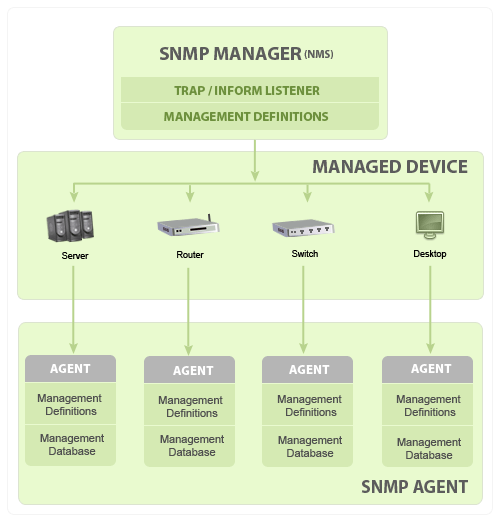
SNMP stands for Simple Network Management Protocol. It is a widely used protocol for monitoring and managing devices on a network. SNMP uses a client-server architecture, with a central management station (NMS) that polls devices for information and receives notifications from them when events occur.

SNMP Features

SNMP offers a number of features that make it a valuable tool for network management, including:

  • Scalability: SNMP is designed to be scalable to large networks. It can be used to monitor thousands of devices simultaneously.
  • Ease of use: SNMP is relatively easy to use and configure. It does not require any special knowledge of networking to get started.
  • Security: SNMP can be configured to use a variety of security mechanisms, including authentication, authorization, and encryption.

SNMP Applications

SNMP is used for a variety of network management tasks, including:

  • Device discovery: SNMP can be used to discover devices on a network. This information can be used to build a network inventory.
  • Health monitoring: SNMP can be used to monitor the health of devices on a network. This information can be used to identify potential problems before they cause outages.
  • Performance monitoring: SNMP can be used to monitor the performance of devices on a network. This information can be used to identify bottlenecks and optimize network performance.
  • Event notification: SNMP can be used to receive notifications when events occur on devices on a network. This information can be used to quickly identify and respond to problems.

SNMP Security

SNMP is a relatively secure protocol, but it is important to take steps to protect your network from attack. Some of the things you can do to improve the security of your SNMP implementation include:

  • Use strong passwords: SNMP uses community strings to authenticate devices. Make sure to use strong passwords that are difficult to guess.
  • Restrict access: You can restrict access to SNMP on a per-device basis. This will help to prevent unauthorized users from accessing your network devices.
  • Use encryption: You can encrypt SNMP traffic to protect it from eavesdropping.


CAPWAP - Activity

Control and Provisioning of Wireless Access Points (CAPWAP) - is a protocol that enables a wireless access controller to manage a collection of termination points. Lets run through this in Cisco's packet tracer:

Build a topology

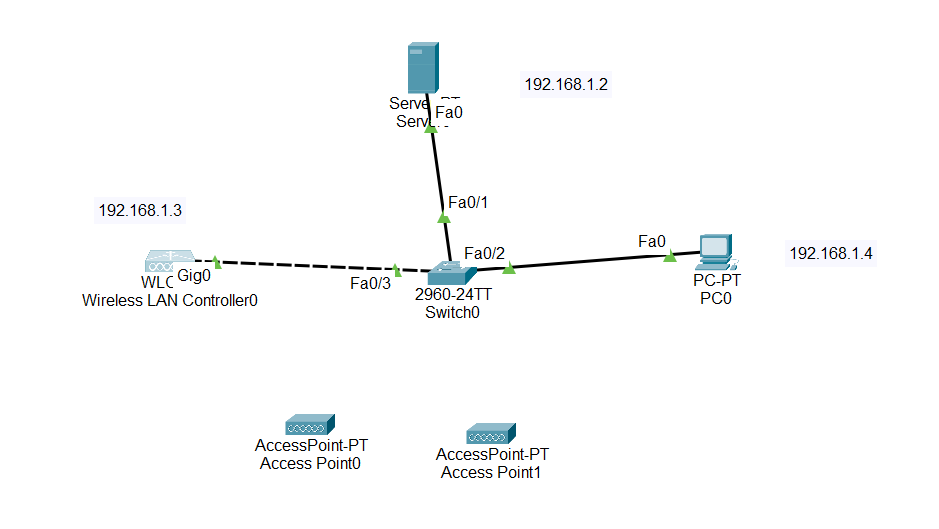
Build a topology like the below, lets refrain from wiring up the access points now. Imagine this is a company office and the wireless access points are on corridors to provide better wireless services to devices across the company. 


Server config


Assign an IP address to your server:


Under services, check DHCP, turn it on and configure IP addresses like the below making sure they match your topology outline.


DNS: create a DNS entry of your choice and again make sure the IP address matches your topology. 


Configure the wireless lan controller (WLC)

Again make sure your IP addresses match your topology.


Enable DHCP on your PC


Check you can communicate with the WLC


ON the PC enter the IP address in the web browser of your WLC (once you press go it make take a few minutes to connect)


Create a user name and password. (your password will need to have requirements ie capitals and numbers)


Name your WLC and assign the IP addresses from your topology. I have left the management VLAN for now as this would form part of a wider activity.


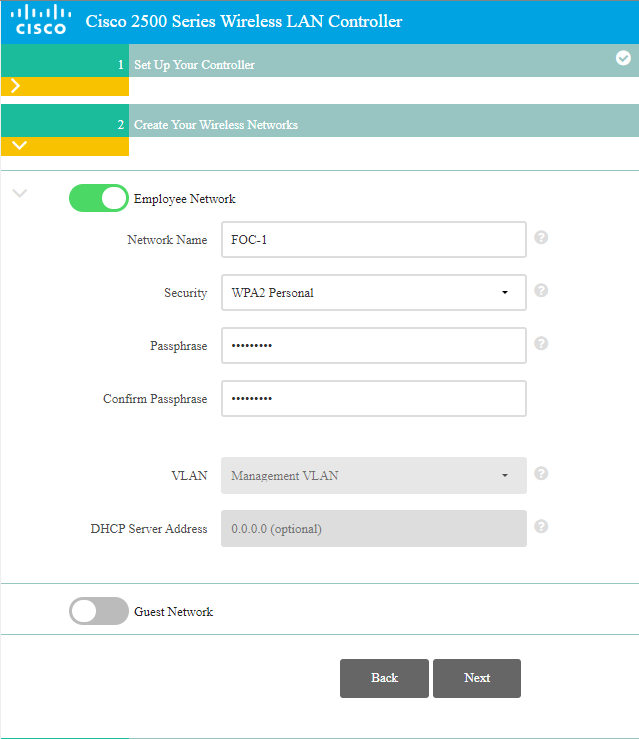
Give your Wireless network an SSID and set the encryption method and passphrase.


The virtual IP address can remain the same.


Check and confirm your settings: 


You can now connect your access points wait until they have all turned green. Make sure you have used the Lightweight access points


You will need to drag the power supply into the power socket from the bottom this LAP does not support POE


Now when you go back into the browser on the PC you will need to use https before your IP address


Once logged in you should be presented with the status of your access points and lots more information such as system time, uptime access. There is a lot that can be done here such as added guest networks or different forms or authenticated networks but that's for another day :) 


Fast switching vs Process switching

Process Switching: Process switching is the traditional method of packet forwarding used in early routers. When a packet arrives at a router...